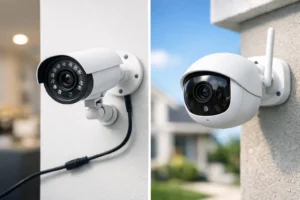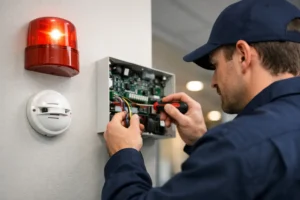

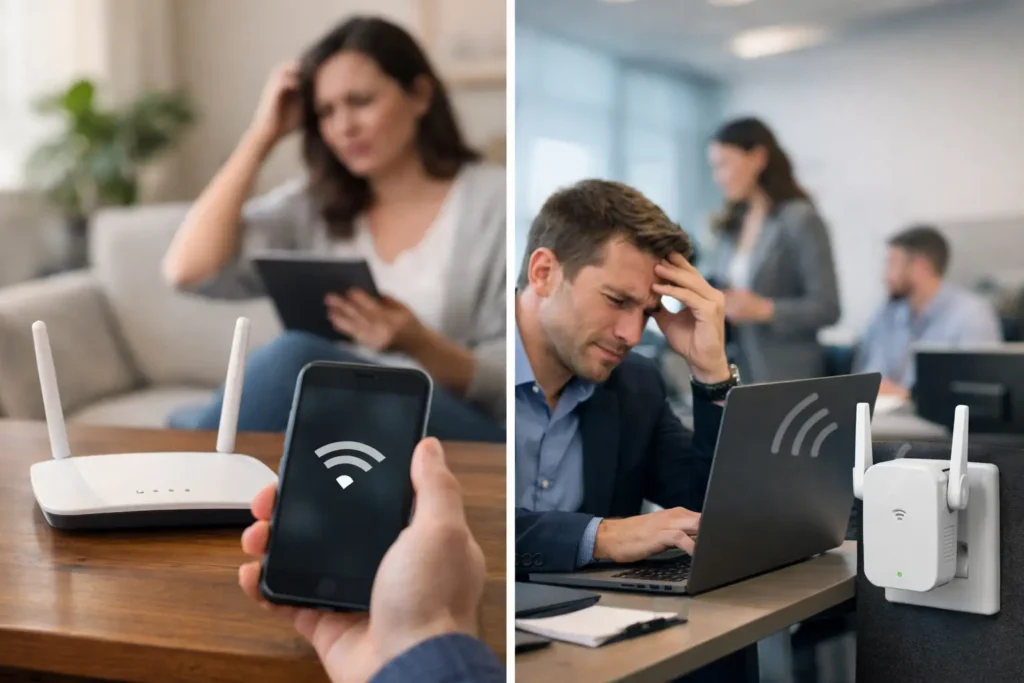
A camera that loads slowly, a video doorbell that drops offline, or a point-of-sale terminal that stalls during a busy shift is more than an inconvenience. It can create a security gap and disrupt daily operations. Knowing how to improve weak wifi starts with identifying where the signal fails, what is blocking it, and whether the network was designed for the property’s actual demands.
Weak Wi-Fi is rarely solved by simply buying the most expensive router. The right solution depends on the building layout, construction materials, number of connected devices, internet service, and the systems that rely on the connection. A small apartment, a large Delta home, a warehouse, and a medical office each require a different approach.
Start by Finding the Source of the Weak Signal
Before changing equipment, determine whether the problem is weak wireless coverage, slow internet service, or an overloaded network. These issues can feel identical from a phone or laptop, but they require different fixes.
Stand near the router and run a speed test, then repeat the test in rooms or work areas where performance is poor. If speeds are slow even beside the router, the issue may be your internet plan, modem, router settings, or a provider-side problem. If performance is good nearby but poor in distant rooms, behind concrete walls, or outdoors, coverage is the likely issue.
Also notice whether the connection fails at certain times. A home network may slow down when multiple people stream, game, and attend video calls. A business network may struggle when staff, guest devices, IP cameras, access control panels, and cloud-based applications all compete for bandwidth. Identifying the pattern prevents wasted money on the wrong upgrade.
How to Improve Weak WiFi With Better Router Placement
Router placement has a major effect on signal quality. Wi-Fi travels through the air, but walls, floors, metal, glass, appliances, and dense furniture reduce its range. Concrete, brick, radiant floor heating, mirrors, elevator shafts, and metal shelving can be especially challenging in commercial properties.
Place the router in a central, open, elevated location whenever possible. A router hidden in a basement utility room, electrical cabinet, closed closet, or behind a television may technically work, but it is unlikely to deliver consistent coverage throughout the property. Keep it away from large metal objects and avoid placing it directly beside cordless phone bases, microwave ovens, or other electronics that can create interference.
For a two-story home, placing the main router near the center of the first floor or in an open central area may provide a better overall result than putting it at one extreme end of the building. In a business, the best location is often determined by where staff work and where critical systems are installed, not simply where the internet cable enters the unit.
Choose the Right Wi-Fi Band for the Device
Most modern routers offer 2.4 GHz and 5 GHz Wi-Fi bands. Some newer systems also offer 6 GHz. Each has a role.
The 2.4 GHz band travels farther and handles walls better, but it is often more crowded and can provide lower speeds. It is commonly suitable for smart devices, doorbells, sensors, and some cameras positioned farther from the router. The 5 GHz band generally delivers faster speeds with less interference, but its range is shorter. It is often the better choice for laptops, streaming devices, workstations, and high-resolution cameras located closer to an access point.
Do not assume every device should use the same band. A professional setup can separate devices based on their purpose and location. This reduces congestion and helps important equipment stay connected. For example, security cameras and access control equipment may benefit from their own managed network rather than sharing the same connection as guest phones and entertainment devices.
Reduce Interference and Network Congestion
In dense neighborhoods, apartment buildings, retail plazas, and multi-tenant offices, nearby Wi-Fi networks can compete for the same wireless channels. This is one reason a connection may work well early in the day and become unstable later when more networks and devices are active.
Restarting the router can temporarily help, but it does not address the underlying cause. Check whether your router is automatically selecting the best channel. Older routers may need manual channel adjustments, while newer managed systems can adapt more effectively as network conditions change.
Too many active devices can also slow performance. Smart TVs, phones, tablets, speakers, thermostats, cameras, gaming systems, and appliances all consume network capacity. In commercial settings, add staff devices, inventory scanners, payment terminals, cloud applications, guest Wi-Fi, and surveillance equipment to that list. A router built for light household use may not be appropriate for a busy office, restaurant, warehouse, or large home with integrated smart technology.
Use Wired Connections for Critical Equipment
Wi-Fi is convenient, but a wired Ethernet connection is generally more stable for devices that need continuous performance. Where practical, connect network video recorders, desktop workstations, smart TVs, gaming consoles, access control panels, and fixed security cameras by Ethernet.
A wired connection frees wireless capacity for mobile devices and equipment that cannot be cabled easily. It also reduces the chance that a critical device will lose its connection because of interference or a weak signal. For security systems, this matters. Reliable video recording, remote viewing, alarm communication, and smart access features depend on dependable network infrastructure.
Power over Ethernet, often called PoE, can be particularly useful for camera and access control installations. One cable can provide both network connectivity and power to compatible equipment. The trade-off is that cabling requires planning and professional installation, especially in finished homes, multi-level buildings, and active commercial spaces. The result is usually a cleaner, more reliable long-term system.
Expand Coverage With Access Points or a Mesh System
If placement and settings do not solve the problem, the property may need additional wireless equipment. A mesh system can extend coverage through multiple wireless nodes, making it a practical option for many homes and smaller offices. However, mesh nodes still need sensible placement. A node placed in an existing dead zone cannot create a strong signal if it receives a weak signal itself.
For larger homes, commercial buildings, warehouses, and properties with difficult construction, wired access points are often the stronger solution. Access points connect back to the network by cable and deliver Wi-Fi where people and devices actually need it. They can be installed in separate wings, upper floors, outdoor areas, offices, stockrooms, or customer-facing spaces.
The right choice depends on the environment. Mesh can be easier to install and less disruptive. Wired access points typically provide greater consistency, capacity, and control. A site assessment should account for coverage zones, wall materials, device count, expected usage, and future expansion.
Check Whether the Router Is Old or Undersized
A router that was adequate five years ago may not be able to manage a modern connected property. Older equipment can lack the capacity, range, security standards, and processing power needed for multiple 4K cameras, smart home controls, remote work, video calls, and guest access.
Signs that replacement may be necessary include frequent restarts, devices repeatedly disconnecting, poor performance despite a fast internet plan, limited range, or an inability to separate guest and business traffic. Firmware updates can improve stability and security, but they cannot turn an outdated router into enterprise-grade equipment.
When selecting a replacement, look beyond advertised top speed. Consider the number of devices, building size, multi-floor coverage, wired ports, security controls, VLAN or network segmentation options, and whether the equipment supports managed access points. A low-cost all-in-one router may be enough for a small home. A property with cameras, alarms, access control, and multiple users often needs a more purposeful network design.
Protect the Network While Improving Performance
An unsecured or poorly configured Wi-Fi network can be slow and risky. Use a strong, unique Wi-Fi password and current encryption settings. Change default router administrator credentials, keep firmware updated, and create a separate guest network for visitors.
For businesses, separating operational equipment from guest access is a practical security measure. It helps protect cameras, alarm panels, access control systems, and office devices from unnecessary exposure. It can also prevent guest traffic from consuming the bandwidth needed for daily operations.
Avoid adding unknown signal boosters or cheap repeaters without understanding how they work. Some repeaters cut available bandwidth, introduce instability, or create a second network that devices do not switch between properly. They can be useful in limited situations, but they are not a universal fix.
When a Professional Wi-Fi Assessment Makes Sense
If dead zones affect security equipment, staff productivity, remote work, customer service, or building automation, a professional assessment can save time and prevent a patchwork of temporary fixes. HTech Knight Security Systems Ltd designs network and Wi-Fi infrastructure around the full property, including cameras, alarms, access control, intercoms, smart home devices, and day-to-day user needs.
A proper assessment considers signal coverage, cable routes, interference, equipment placement, internet capacity, and the systems that must remain reliable. This is especially valuable in larger homes, renovated properties, restaurants, retail locations, warehouses, and offices where a standard router cannot cover every area effectively.
A dependable Wi-Fi network should fade into the background: cameras stay online, doors respond when authorized users arrive, video calls remain clear, and staff can work without chasing a signal from room to room. If your connection is becoming the weak point in your property technology, address it before it becomes a security or operational problem.